

MHCOZY WiFi Wireless Smart Switch Relay Module for Smart Home 5V 5V/12V,Ba applied to access control, turn on PC, garage door (12V)
Product Description
MHCOZY WiFi Wireless Smart Switch Relay Module for Smart Home 5V 5V/12V,Ba applied to access control, turn on PC, garage door (12V)
- Easy installation and works perfect with your garage door opener
- This wireless switch supports inching /self-locking mode.you can add the device to the APP to remote control most home appliances or devices.
- DIY Your Smart Home,Support Remote turn on/off ,Timing Schedules ,Device Sharing Group ,Management
- WIFI Alexa and App controllable Inching relay,Remote control your home appliances through the App eWeLink by your phone, available on both Android and iOS
- Voice Control,Works with Amazon Alexa,Google Home,DIY WIFI Remote Garaged Door Opener,
The wireless switch supports inching /self-locking mode. Users can add the device to the APP eWeLink to remote control connected home appliances or devices.
In self-locking mode, customers can remotely turn on/off connected devices immediately.
When in inching mode, customers can have two wiring ways to select:
Turn on 1s and then auto-off
Turn off 1s and then auto-on.
This product Compatible with Alexa.
The relays are switches without output, the power supply input (AC/DC) just for the PCBA
The product enables remote control of home appliances through the mobile application eWeLink, available on both Android and iOS. Supported functions include:
Remote turn on/off
Timing schedules
Device sharing
Group management
Reminder: Operating voltage at 90 - 250 V
Package included: 1 x Jog Inching Self-locking WiFi Wireless Smart Home Switch
Add device to eWeLink:
Long press the setting button until the LED beside on/off setting button begins fast blinking.
Android: Add Device->select pairing method ->enter WiFi name and password->pairing and register->name device
iOS: go to phone setting->WiFi-> select the WiFi starts with ITEAD-********, enter default password to connect:12345678-> go to eWeLink->Add device->select 1st generation pairing method->enter your WiFi name and password->pairing and register->name device
Technical Specifications
You might also like
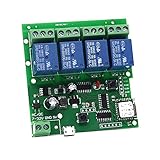
4 Channel WIFI Momentary Inching Relay Self-lock Switch Module,DIY WIFI Garage Door Controller (5-32V)

WHDTS WiFi Momentary Inching & Self-Locking Relay Delay Switch Module Low Power Smart Home Remote Control DC 12V Compatible with iOS Andriod 2G/3G/4G Network
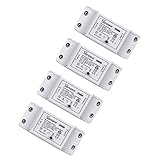
Sonoff Basic Smart Remote Control Wifi Switch Compatible with Alexa DIY Your Home via Iphone Android App (Sonoff 4Pack)

EACHEN WiFi Wireless Inching Relay Momentary/Self-locking Switch Module DIY Smart Garage Door DC 5-32V AC90-260V Ewelink App Compatible With Alexa Echo Google home Nest IFTTT (ST-DC1)

EACHEN WiFi Wireless Inching Relay Momentary/Self-locking Switch Module DIY Smart Garage Door Opener DC 5-32V AC90-260V Ewelink App iOS/Andriod Compatible With Alexa Echo Google home IFTTT (ST-DC2)

Sonoff 4CH Pro R2 Smart Switch, Interlock Switch for Generator, Inching/Self-locking WiFi & RF Wireless Switch 90~250V AC/ 5~24V DC,Work with Alexa,& Google Home & IFTTT (1-16s delay in inching mode)
icv Micro USB Wall Charger 5V 2A Power Adapter with US Plug and Fixed Micro Cable for Samsung Galaxy S6 S5 S4 S3 S2 Si9003,S5820 N7100 Note3 Note4 Black

Sonoff Wifi Switch, DC5V 12V 24V 32V Wireless Relay Module Smart Home Automation Modules APP Remote Control Timer Switch Voice Control Compatible with Alexa Google Home

Sonoff TH16 Wifi Temperature and Humidity Sensor Switch+Si7021 RF Controller for DIY Smart Home,Wireless Remote Control Home Appliances and Work with Amazon Alexa, 1 Set
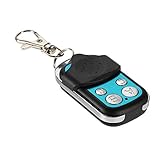
Itead SONOFF 433MHz Wireless 4 Buttons Push Cover Remote for SONOFF RF,4CH PRO R2, Slampher, RF Bridge