

Wireless Display Adapter, Boscheng WiFi Wireless HDMI Dongle 1080P HDTV Adapter, Support DLNA & Miracast & AirPlay Mirroring Screen for iOS Android Smartphones Wiondows MacOS Laptops
Product Description
Wireless Display Adapter, Boscheng WiFi Wireless HDMI Dongle 1080P HDTV Adapter, Support DLNA & Miracast & AirPlay Mirroring Screen for iOS Android Smartphones Wiondows MacOS Laptops
- Multi-Mode Selecting: Support DLNA, Airplay Mirroring, Miracast, Smart View and other WLNA display(Just click the mode switch hole). Compatible with iOS 8.0 and above (Also Works with iOS 11), Android device 4.4 and above Smartphones Tablets, Mac OS 10.9 & Windows 8.1 Laptops.
- Wireless Display Adapter: Wireless project what's on your tablet, laptop, or smartphone to your big screen. Enjoy movies, personal videos, photos, games, websites, and even PowerPoint presentations on your HDTV Monitor or Projector.
- Easy Connection, Plug & Play: No need extra Apps or phone cables. Just plug in the adapter to your HDMI-Enabled devices and USB adapter or interface, Search and connect the WiFi, Mirror the media from your phone/tablet, three steps only!
- Support Full HD 1080P Display: Supported Resolution up to 1920x1080p @60Hz. Support 1080P high digital signal output, can be connected to HDMI Monitors, HDTV, projectors.
- APP Supported: YouTube, IDMB, Quickflix, Family On TV, ABC, NBC, FOX, Microsoft Office, PowerPoint, IE browser, Chrome Browser and more on your devices. Not compatible with the app that requires copyright, like Netflix/iTunes/Amazon Video/ HBO go/Hulu Plus/Honda Motor/ESPN and other websites. Please double check whether to accept that before purchase.
How to use the wifi display adapter:
For iOS devices:
1. Click the Mode button Hole on the back of the adapter and switch to DLNA mode for iOS iPhone iPad.
2. Connect iOS device to the dongle WiFi with the password on WiFi setting.
3. Control Center > Airplay Mirroring > Choose dongle, TV will share your screen immediately.
4. When the first use please set the dongle connected to Wi-Fi router. Connect your iOS device to the hotspot of dongle. Open web browser > Visit 192.168.49.1 > Choose Wi-Fi setup > Select your Wi-Fi router > Input password > Connect.
For Android devices:
1. Click the Mode button hole on the back of the adapter and switch to to MiraCast mode.
2.Open Miracast switch on your Android device and choose MONTOVIEW-XXXXX, the device will automatically connect.
3.There are different names of Miracast on different Android devices, such as WIFI Displayã€SmartViewã€Muti-screen displayã€WLAN Displayã€Wireless Display etc.
For Windows 8.1 and above system PC, Press the [WIN] +P, find the wireless display function and connect the dongle.
Notice:
--No App download needed, no need connect to your phone by USB cables. There is a mode switch key on the adapter, you can switch between iOS and Android easily.
--Make sure our cable can support the apps you want to mirror! Due to the copyright protection (HDCP), public sharing of the contents on the screen may be prohibited by some video service providers (such as Netflix, Amazon video, HULU).
--Make sure the power you supply are 5V/1A or above,otherwise it will not work. Only support 2.4GHz WiFi hotspot, not support 5.0GHz WiFi hotspot.
Package Including:
1 x HDMI Miracast Adapter
1 x User Manual
Technical Specifications
You might also like
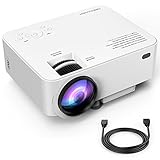
Upgraded DBPOWER T20 LCD Mini Movie Projector +10% Brighter, Multimedia Home Theater Video Projector with HDMI Cable, Support 1080P HDMI USB SD Card VGA AV TV Laptop Game iPhone Android Smartphone
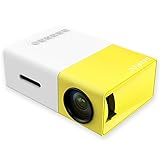
DeepLee Mini Projector, DP300 Portable LED Projector support PC Laptop USB Stick USB/SD/AV/HDMI Input for Video/Movie/Game/Home Theater Video Projector- Yellow
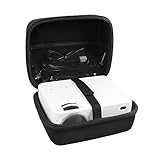
Hermitshell Hard EVA Travel Case fits DBPOWER Mini Projector JPJJ0723 / T20 / T21 1500 Lumens LCD Mini Projector Multimedia Home Theater Video Projector

Microsoft Wireless Display Adapter (P3Q-00001)
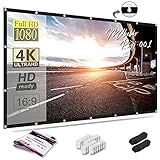
Mdbebbron 120 inch Projection Screen 16:9 HD Foldable Anti-Crease Portable Projector Movies Screen for Home Theater Outdoor Indoor Support Double Sided Projection